Thursday, February 16, 2017

What's new in Power BI Desktop for January

We have an exciting release of Power BI Desktop this month. It includes several formatting features that have been top asks and new Quick Calcs for your measures. We also have several updates to data connectors and two new query editing options.

Desktop Download button

Here’s the complete list of February updates:

Report view

Analytics

Data connectivity

Query editing improvements

Other

For a summary of the major updates, you can watch the following video:

Report view

Word wrap on matrix row headers

Last month, we added word wrap for table headers, and this month we are extending that support to matrix row headers. You’ll see a word wrap toggle under the Row headers card. Once you turn word wrap on, the row headers will word wrap to fill the space they have.
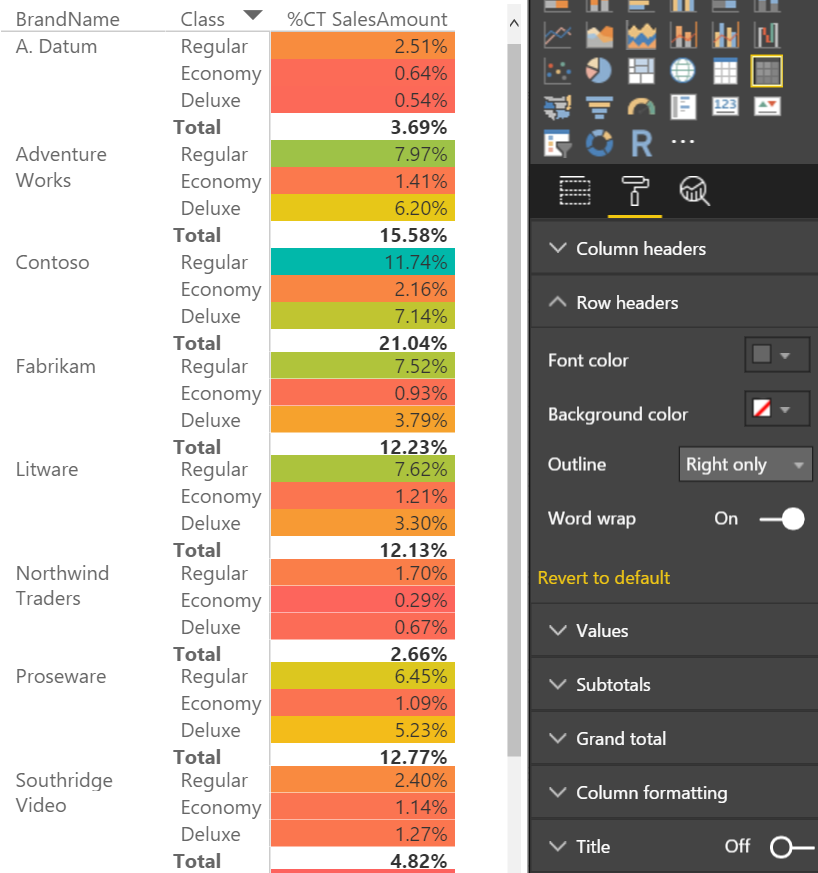
Headers will start to truncate once the available space runs out. This means the lowest level of your row headers will not wrap. We will be improving this experience and adding word wrap to values and column headers in future updates.

Find more details about matrix row header word wrapping in the following video:

X- and Y-axis font size control

One of the most asked for formatting features we hear is the ability to change the font size for the X- and Y-axis, and with this release, you’ll now find the text size slider under the X-Axis and Y-Axis cards in the formatting pane. By default, the axis labels and title will change size together, but you can use the text size slider under the Title section of the axis card to override this and give the title a different size.
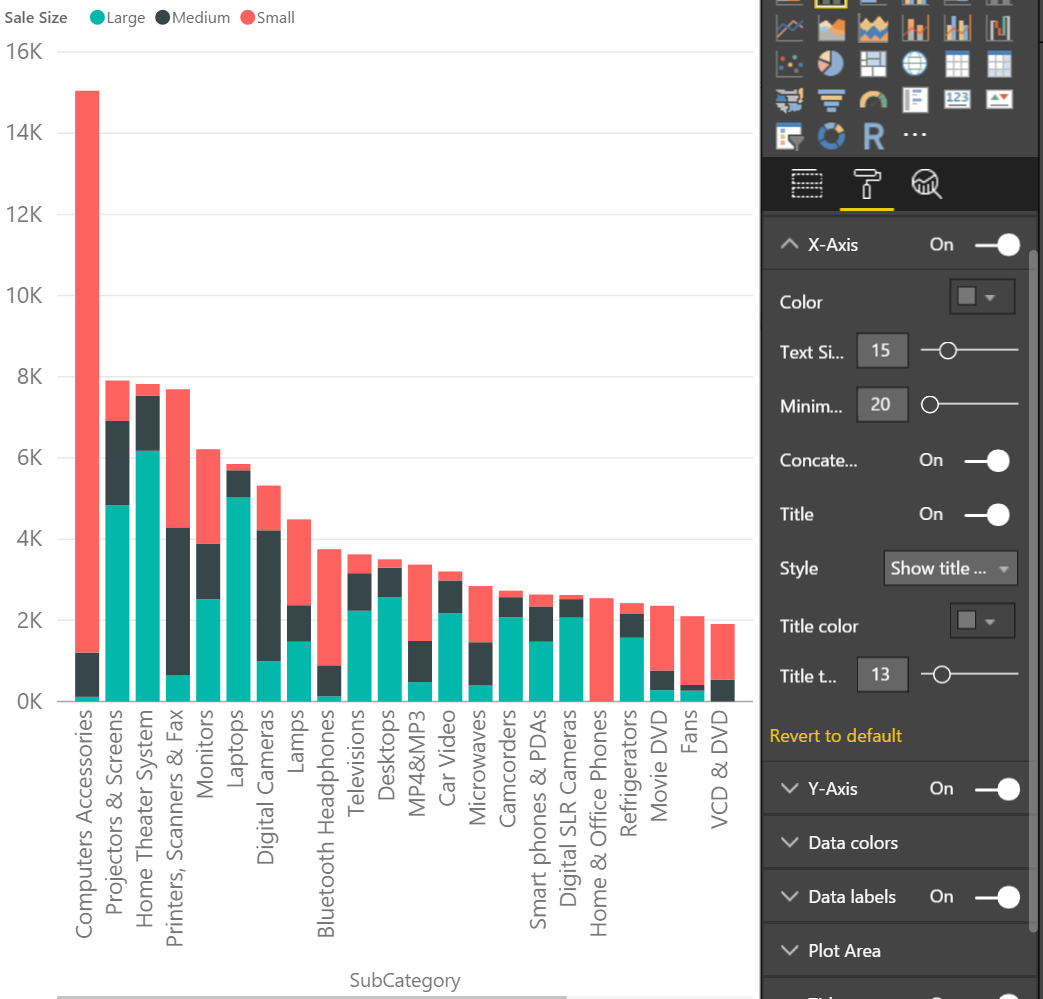
Find more details about the X- and Y-axis font size control in the following video:

Cartesian chart minimum category width

Depending on your data label settings and chart size, you may not see all the data labels on your chart. If you want to guarantee that your data labels show, you can now set the minimum width of categories in Cartesian charts. This is also a good feature to use if you are increasing the font size of the axis on your charts. You can increase your category width in conjunction with the font size to give the larger fonts more room on the axis. You'll find the setting under the X-axis card for column, line, and waterfall charts, and under the Y-axis for bar charts.
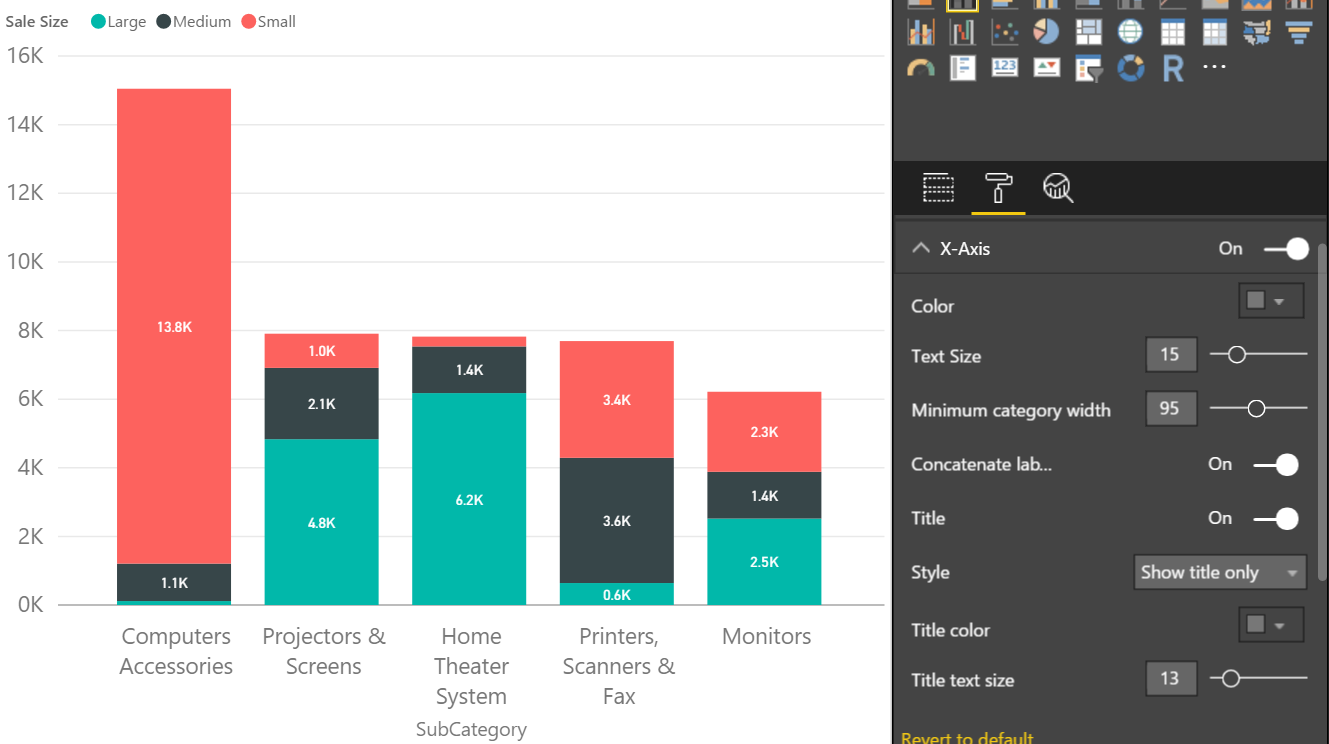
If you use this feature, we will always show the categories at least that wide. We will still use our auto-sizing logic to make the categories bigger than the minimum if wider categories will fit. This means you can set a minimum size that will guarantee your data labels will show, but if you start filtering data out, the chart will still auto-size the categories wider to look better.
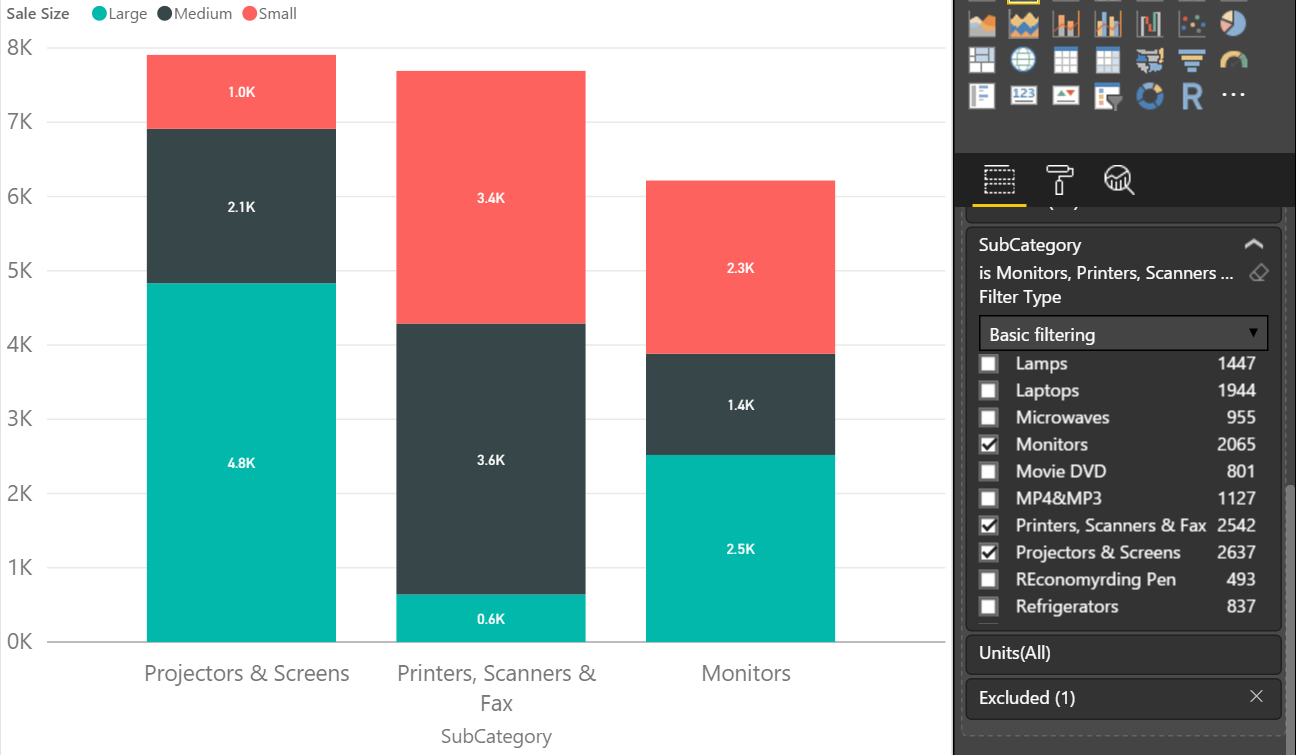
Find more details about the Cartesian chart category width control in the following video:

Line chart line thickness and join type controls

With this release, we have a new formatting feature for line charts. Under the Shapes card in the formatting pane, you can use the stroke width feature to make your lines thicker. You can also control the join type. These features are great for both stylistic changes and readability.

clip_image012

Find more details about the Line thickness control in the following video:

Analytics

2 new Quick Calcs: Percent of row total & percent of column total

This month, we have two new Quick Calcs for values in the matrix visual. Now when you open the Quick Calc dialog for Value fields in the matrix visual, you’ll see need two new options.

clip_image014

Under Show value as, you’ll see Percent of column total and Percent of row total in addition to the Percent of grand total we released a while ago.

clip_image015

If you convert a matrix visual to another visual with one of these new Quick Calcs, the calculation will convert these totals into a percent of grand total.

More details about the new Quick Calcs can be found in the following video:

Data connectivity

ODBC and OLE DB connectors: support for selecting related tables

We have enabled the Select Related Tables button in the Navigator dialog when using the ODBC and OLE DB connectors. This option, which is available for other relational data sources already, allows you to easily select tables that are directly related to the set of already selected tables in the Navigator.

clip_image017

Find more details about this ODBC and OLE DB connectors update in the following video:

Enhanced Folder connector: support for combining binaries from the Preview dialog

In the November release, we shipped a set of enhancements to the Combine Binaries experience. You can learn more about those enhancements in this article.

This month, we’re making it easier for you to reach the Combine Binaries feature. You can choose to combine multiple files from the folder preview dialog within the Get Data flow, bypassing the Query Editor.

Note that we’re exposing multiple options (Combine, Combine & Load) to allow you to further refine your data before loading it into the data model.

Find more details about the folder connector improvement in the following video:

Unified text & CSV connectors

With this month’s release, we’re unifying the entry points for importing Text and CSV files into a single Text/CSV entry point. This new entry point can be found in the Get Data dialog, under the Files category.

clip_image019

Upon selecting this option, the Open File dialog allows you to select files with TXT, CSV, or PRN file extensions by default, or any other file extension by switching to the All Files (*.*) filter option.

Find more details about the unified text and CSV connectors in the following video:

PowerApps Common Data Service connector

We are very excited to announce the PowerApps Common Data Service connector. You can now pull your Common Data Service data into Power BI and build reports to share with others.

Some of the great features that come with this connector include:

  • Near-real time data
  • Security roles defined in the Common Data Service
  • Auto-generated semantic models, which present data by subject area
  • Semantic models automatically updated when entities are extended in the Common Data Service

This connector can be found under the Online Services tab of the Get Data dialog box.
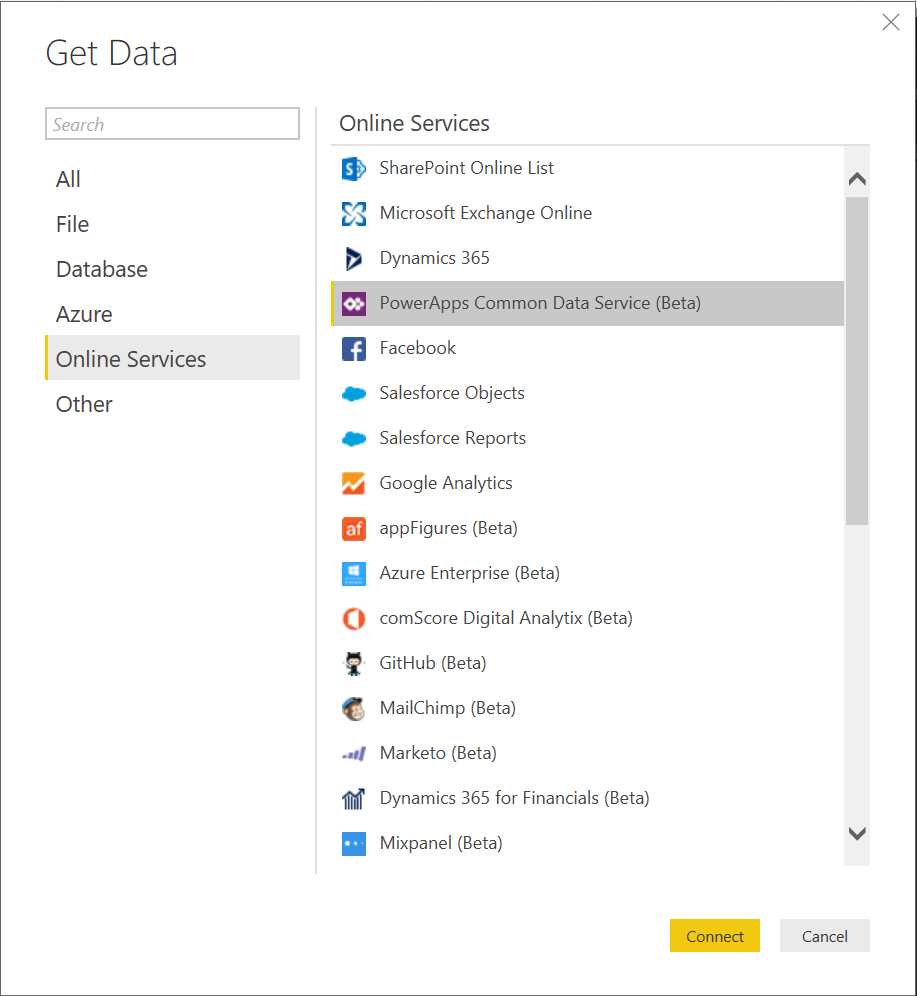
Once you select Connect, you'll be asked to sign in with your organizational account.

clip_image023

Once you sign in and select Connect, you'll be asked to choose the environment to connect to.

clip_image025

Next, select the perspective that contains the data you want.

clip_image027

We will now connect to the data and you can start building your reports to share.

clip_image029

The Common Data Service connector is currently in preview and only available to a segment of users in the United States. If you want to be part of the preview and aren't currently, you can request access by emailing: CDSPowerBIPreview(at)Service.Microsoft.com. In addition to being part of the preview group, to use this connector, you'll need to:

  • enable the Power BI integration in the PowerApps admin portal
  • have maker permissions in PowerApps
  • sign in to PowerApps at least once

If you want to learn more about the Common Data Service and the connector, check out the PowerApps blog or check out the Common Data Service and PowerApps documentation. As you try out this new connector, be sure to let us know if you have any questions or feedback!

Query editing improvements

Specify the desired column type and locale in column headers type menus

In the Query Editor, it's possible to see and modify column types by using the Type menus in the preview area. However, before this release, you couldn't change type by locale via these dropdown menus. This option allows you to specify the desired column type and locale to use for the conversion, which affects how text values are recognized as other data types (such as dates, numbers, etc.).

With this release, we’re adding Using Locale to the column header type menus for easier access to this capability, which has been a popular idea in our Power BI Feature Suggestions forum.

clip_image031

Find more details about the update to the column headers type menu in the following video:

Easily insert steps in existing queries

We’ve added a new context menu option to easily insert new steps in existing queries. Insert a new custom step after the currently selected step (which can be the final step or any previous step within the query).

clip_image033

Find more details about the update to the new steps pane option in the following video:

Other

Solution Templates and Partner Showcase quick access

We've added quick access on the ribbon to two great resources: Solution Templates and the Partner Showcase. Solution templates let you use a wizard to very quickly and easily create a working end-to-end enterprise-ready Power BI solution. The Partner Showcase lets you browse our certified partners, see their work, and reach out if you are interested in working with them. If you're looking for resources to work with when creating your Power BI solutions, be sure to check these out!

clip_image035

Find more details about the new resources in the following video:

That’s all for this month! We hope that you enjoy this new update and continue sending us valuable feedback about our product. Please don’t forget to vote for other features that you would like to see in the Power BI Desktop in the future.

Share:

NAV Development Tool Update–February

Welcome to the February update for the Developer Preview. As in the last two updates, we’ve fixed bugs reported by you on our GitHub issues list (https://github.com/Microsoft/AL/issues) and made other improvements.

You can see a list of what’s new below.

– Finishing your design work in the client now offers two options on saving, allowing you to save the changes to the tenant for all users, or to save the changes to a file that you can work on later in VS Code. Performance of the designer has improved and is snappier.

inclient_2

– To guide users towards a better page design, we’ve been adding a few rules in the in-client designer. For example, you can only drop media fields onto card part pages. Also, you cannot drop a field under a repeater control, because this is not the design that list pages were intended for.

– Getting started in VS Code has been streamlined. Once you’ve installed the visx file, just enter AL: Go! in the command palette (Ctrl+Shift+P) and you’ll be offered a new folder to build a solution in. The preset values are configured for your Azure Gallery instance and if you’re missing the symbols for the project, VS Code will offer to download them for you. Note, we’ve introduced a shortcut for this too – Alt+A, Alt+L. Enjoy!

algo

– We’ve made improvements in IntelliSense with contextual support for keywords in all objects – and we’ve added autocompletion and IntelliSense for setting values for the CalcFormula and TableRelation properties.

– You can now reference Query objects from the base application. This gives you the ability to declare variables of the type Query and call AL functions on them.

– References by symbols have been implemented meaning that you can find all references in an inline editor. Pressing Shift+F12 on top of a symbol will open a view that lets you jump to all instances of that symbol. Furthermore, selecting a symbol and pressing F2 allows you to rename all instances of that symbol. Note, that symbolic rename is cleverer than text matching and will only change the current symbol. For example, it will replace all instances of variable Foo, but not rename function Foo.

– Two AL variables have been introduced mapping to the HTTP Client and JSON types. Using HttpClient, HttpResponseMessage, JsonObject, JsonToken, and JsonValue will allow you to access Azure functions and other Web services.

– Miscellaneous bugs reported from GitHub have been fixed.

Just like in the last update, we’ve already updated the Azure Gallery so new images will include the update. Again, we’ve designed for compatibility with your existing files so any .al projects you have already will work with the AL Language extension for VS Code. Having said that, changes may need to be introduced at some time so save your work independently as you go.

We have big ambitions for the next month so stay with us. Thanks again for the bugs – keep them coming and we’ll fix them as fast as we can.

Share:

Cumulative Update 47 for Microsoft Dynamics NAV 2013 (Build 47880)

Cumulative Update 47 includes all application and platform hotfixes and regulatory features that have been released for Microsoft Dynamics NAV 2013.

The cumulative update is intended mainly for solutions that are experiencing the problems described in the Knowledge Base article linked to below. However, you are advised to always keep your solution updated with the latest cumulative update. If you are in doubt about whether this cumulative update addresses your specific problem, or if you want to confirm whether any special compatibility, installation, or download issues are associated with this cumulative update, support professionals in Customer Support Services are ready to help you. For more information, see http://support.microsoft.com/contactus/.

The cumulative update includes hotfixes that apply to all countries and hotfixes specific to the following local versions:

Where to find Cumulative Update 47

You can download the cumulative update from KB 4011765  – Cumulative Update 47 for Microsoft Dynamics NAV 2013.

Or you can download the cumulative update from the Microsoft Download Center.

Warning

Before you install a cumulative update in a production environment, take the following precautions:

  1. Test the cumulative update in a non-production environment.
  2. Make a backup of the system or computer where the cumulative update is to be installed.
  3. Note: Implementing this cumulative update can require a database upgrade.
  4. Note: We are currently transitioning to a new Knowledge Base system to provide you a better experience. During the transition period, access to Knowledge Base articles from within CustomerSource and PartnerSource will be unavailable. During this transition period, Knowledge Base articles can be found by utilizing the search functionality located on the Microsoft Support Website.

Additional Information

For a list of all cumulative updates for this version, see Released Cumulative Updates for Microsoft Dynamics NAV 2013.

Share:

Cumulative Update 40 for Microsoft Dynamics NAV 2013 R2 (Build 47881)

Cumulative Update 40 includes all application and platform hotfixes and regulatory features that have been released for Microsoft Dynamics NAV 2013 R2.

The cumulative update is intended mainly for solutions that are experiencing the problems described in the Knowledge Base article linked to below. However, you are advised to always keep your solution updated with the latest cumulative update. If you are in doubt about whether this cumulative update addresses your specific problem, or if you want to confirm whether any special compatibility, installation, or download issues are associated with this cumulative update, support professionals in Customer Support Services are ready to help you. For more information, see http://support.microsoft.com/contactus/.

The cumulative update includes hotfixes that apply to all countries and hotfixes specific to the following local versions:

Where to find Cumulative Update 40

You can download the cumulative update from KB 4011766  – Cumulative Update 40 for Microsoft Dynamics NAV 2013 R2.

Or you can find the cumulative update at the Microsoft Download Center. Before you install a cumulative update in a production environment, take the following precautions:

  1. Test the cumulative update in a non-production environment.
  2. Make a backup of the system or computer where the cumulative update is to be installed.

Warning

  • Note: Implementing this cumulative update can require a database upgrade.
  • Note: We are currently transitioning to a new Knowledge Base system to provide you a better experience. During the transition period, access to Knowledge Base articles from within CustomerSource and PartnerSource will be unavailable. During this transition period, Knowledge Base articles can be found by utilizing the search functionality located on the Microsoft Support Website.
  • Note: This download does unfortunately not include content for the additional folders extracted from the DVD. You will have to get the content from the DVD. This issue will be corrected for next month.

Additional Information

For a list of all cumulative updates for this version, see Released Cumulative Updates for Microsoft Dynamics NAV 2013 R2.

Share:

Cumulative Update 28 for Microsoft Dynamics NAV 2015 (Build 47871)

Cumulative Update 28 includes all application and platform hotfixes and regulatory features that have been released for Microsoft Dynamics NAV 2015.

The cumulative update is intended mainly for solutions that are experiencing the problems described in the Knowledge Base article linked to below. However, you are advised to always keep your solution updated with the latest cumulative update. If you are in doubt about whether this cumulative update addresses your specific problem, or if you want to confirm whether any special compatibility, installation, or download issues are associated with this cumulative update, support professionals in Customer Support Services are ready to help you. For more information, see http://support.microsoft.com/contactus/.

The cumulative update includes hotfixes that apply to all countries and hotfixes specific to the following local versions:

Note: You must convert the database if you are upgrading to this cumulative update from a cumulative update earlier than Cumulative Update 9 (build 41779). For more information, see Converting a Database in Help for Microsoft Dynamics NAV.

Where to find Cumulative Update 28

You can download the cumulative update from KB 4011764  – Cumulative Update 28 for Microsoft Dynamics NAV 2015 (Build 47871).

Or you can download the cumulative update from the Microsoft Download Center.

Warning

Before you install a cumulative update in a production environment, take the following precautions:

  1. Test the cumulative update in a non-production environment.
  2. Make a backup of the system or computer where the cumulative update is to be installed.
  3. Note: We are currently transitioning to a new Knowledge Base system to provide you a better experience. During the transition period, access to Knowledge Base articles from within CustomerSource and PartnerSource will be unavailable. During this transition period, Knowledge Base articles can be found by utilizing the search functionality located on the Microsoft Support Website.

Additional Information

For information about how to install the cumulative update, see How to Install a Microsoft Dynamics NAV 2015 Cumulative Update.

For information about how to work around a recent process change, see How to Get Back the ‘Hotfix Directories’ from NAV 2015 Cumulative Update 1.

For a list of all cumulative updates for this version, see Released Cumulative Updates for Microsoft Dynamics NAV 2015.

Share:

Cumulative Update 16 for Microsoft Dynamics NAV 2016 (Build 47864).

Cumulative Update 16 includes all application and platform hotfixes and regulatory features that have been released for Microsoft Dynamics NAV 2016.

The cumulative update is intended mainly for solutions that are experiencing the problems described in the Knowledge Base article linked to below. However, you are advised to always keep your solution updated with the latest cumulative update. If you are in doubt about whether this cumulative update addresses your specific problem, or if you want to confirm whether any special compatibility, installation, or download issues are associated with this cumulative update, support professionals in Customer Support Services are ready to help you. For more information, see http://support.microsoft.com/contactus/.

The cumulative update includes hotfixes that apply to all countries and hotfixes specific to the following local versions:

Where to find Cumulative Update 16

You can see changes included in this cumulative update from KB 4011762 – Cumulative Update 16 for Microsoft Dynamics NAV 2016 (Build 47864).

You can press one of the countries in list above for a direct download or you can download the cumulative update from the Microsoft Download Center.

To learn more about other Cumulative Updates already released for Microsoft Dynamics NAV 2016 please see KB  3108728.

Warning

Before you install a cumulative update in a production environment, take the following precautions:

  1. Test the cumulative update in a non-production environment.
  2. Make a backup of the system or computer where the cumulative update is to be installed.
  3. Note: We are currently transitioning to a new Knowledge Base system to provide you a better experience. During the transition period, access to Knowledge Base articles from within CustomerSource and PartnerSource will be unavailable. During this transition period, Knowledge Base articles can be found by utilizing the search functionality located on the Microsoft Support Website.

Additional Information

For information about how to install the cumulative update, see How to Install a Microsoft Dynamics NAV 2016 Cumulative Update. Note that if you upgrade to this cumulative update from a version older than Microsoft Dynamics NAV 2016 Cumulative Update 6, you must run the development environment with elevated rights (run as administrator).

Share:

Cumulative Update 03 for Microsoft Dynamics NAV 2017 (Build 15140)

Cumulative Update 03 includes all application and platform hotfixes and regulatory features that have been released for Microsoft Dynamics NAV 2017.

The cumulative update is intended mainly for solutions that are experiencing the problems described in the Knowledge Base article linked to below. However, you are advised to always keep your solution updated with the latest cumulative update. If you are in doubt about whether this cumulative update addresses your specific problem, or if you want to confirm whether any special compatibility, installation, or download issues are associated with this cumulative update, support professionals in Customer Support Services are ready to help you. For more information, see http://support.microsoft.com/contactus/.

The cumulative update includes hotfixes that apply to all countries and hotfixes specific to the following local versions:

Where to find Cumulative Update 03

You can download the cumulative update from KB 4011763  – Cumulative Update 3 for Microsoft Dynamics NAV 2017 (Build 15140).

You can press one of the countries in list above for a direct download or you can download the cumulative update from the Microsoft Download Center.

To learn more about other Cumulative Updates already released for Microsoft Dynamics NAV 2017 please see KB  3210255.

Warning

Before you install a cumulative update in a production environment, take the following precautions:

  1. Test the cumulative update in a non-production environment.
  2. Make a backup of the system or computer where the cumulative update is to be installed.

Additional Information

For information about how to install the cumulative update, see How to Install a Microsoft Dynamics NAV 2017 Cumulative Update.

Share:

Tuesday, January 17, 2017

You do not have access to Microsoft Dynamics NAV

spanish-761512_1920

image

Most of us must have seen this error when we try to login into NAV, the reason for this error is the user who is logging into NAV does not have access to the database or the user is not setup in NAV RTC.

To fix the above error, you need to setup the user in NAV.  All the steps to create a new user is in the below Url.

https://msdn.microsoft.com/en-us/library/dd355093(v=nav.80).aspx

In another scenario when you have multiple databases and when the user is trying to login into a database, where the user is already setup as user in one of the database but he gets the above error and NAV client closes when he clicks OK.

Let’s assume we have two databases in this scenario TEST and PRODUCTION.

The user who is trying to login, has access to the TEST database but he does not have access to the PRODUCTION database, so in this case the error is valid since the NAV is trying to login into PRODUCTION database by default. But the real issue is NAV does not provide a way to login into TEST database, as it shuts down when you click OK. 

By default which database to connect is stored in a config file called ClientUserSettings.Config file.

In this case to fix the error ,the user need to update the ClientUserSettings.Config file and change the server and server instance key values to point to the TEST database.

The path for the ClientUserSettings.Config file is

C:\Users\<username>\AppData\Local\Microsoft\Microsoft Dynamics NAV

You need to change the below three key values and make sure they point to the TEST Server Instance.

<add key="Server" value="localhost" />
<add key="ServerInstance" value="DynamicsNAV" />
<add key="ServerPort" value="7076" />

Once you change and restart the NAV client it will open it successfully, given that user is setup properly.

Please leave your comments, feedback or any suggestions you have for me to improve my blog and also if you have any questions, feel free to post.

Share:

Wednesday, January 11, 2017

Open Xml Error on preview or print of a report in NAV

printer-98527


Recently I was trying to print a report in NAV 2017 Demo Database, and I have encountered the below error. The same error occurred even on preview of the report.


image


The default report layout setup for the report is set to word , so it is trying to preview or print a word format report . So to answer why does it it need an OpenXml component to print or preview is

In order to generate a word document of the report, the data output of the report which is in XML Format will be transformed by using the .NET Framework components such as Open XML SDK 2.5. Since it is missing that component on my computer, it is giving that warning. Usually you need to install those component on the NAV Server to avoid this error.

There is a nice article on the NAV community blog which explains the whole execution process of a report with different layouts, please check the blog on the below link for more information.

https://blogs.msdn.microsoft.com/nav/2014/10/30/report-execution-insights/

Solution : To fix the above error you need to install OpenXML SDK from the NAV DVD folder Prerequisite Components, once you install the components please restart the services and you will be able to preview or print the report.

Please leave your comments, feedback or any suggestions you have for me to improve my blog and also if you have any questions, feel free to post.

Share:

Tuesday, January 10, 2017

Cumulative Update 46 for Microsoft Dynamics NAV 2013 (Build 47667)

Cumulative Update 46 includes all application and platform hotfixes and regulatory features that have been released for Microsoft Dynamics NAV 2013.

The cumulative update is intended mainly for solutions that are experiencing the problems described in the Knowledge Base article linked to below. However, you are advised to always keep your solution updated with the latest cumulative update. If you are in doubt about whether this cumulative update addresses your specific problem, or if you want to confirm whether any special compatibility, installation, or download issues are associated with this cumulative update, support professionals in Customer Support Services are ready to help you. For more information, see http://support.microsoft.com/contactus/.

The cumulative update includes hotfixes that apply to all countries and hotfixes specific to the following local versions:

  • AU – Australia
  • AT – Austria
  • BE – Belgium
  • CH – Switzerland
  • DE – Germany
  • DK – Denmark
  • ES – Spain
  • FI – Finland
  • FR – France
  • IS – Iceland
  • IT – Italy
  • NA – North America
  • NL – Netherlands
  • NO – Norway
  • NZ – New Zealand
  • SE – Sweden
  • UK – United Kingdom

Where to find Cumulative Update 46

You can download the cumulative update from KB 3216196  – Cumulative Update 46 for Microsoft Dynamics NAV 2013 (Build 47667).

Warning

Before you install a cumulative update in a production environment, take the following precautions:

  1. Test the cumulative update in a non-production environment.
  2. Make a backup of the system or computer where the cumulative update is to be installed.

Additional Information

For a list of all cumulative updates for this version, see Released Cumulative Updates for Microsoft Dynamics NAV 2013.

For a list of all hotfixes included in cumulative updates for this version, see the following CustomerSource and PartnerSource pages:

CustomerSource:

PartnerSource:

Share:

Cumulative Update 39 for Microsoft Dynamics NAV 2013 R2 (Build 47662)

Cumulative Update 39 includes all application and platform hotfixes and regulatory features that have been released for Microsoft Dynamics NAV 2013 R2.

The cumulative update is intended mainly for solutions that are experiencing the problems described in the Knowledge Base article linked to below. However, you are advised to always keep your solution updated with the latest cumulative update. If you are in doubt about whether this cumulative update addresses your specific problem, or if you want to confirm whether any special compatibility, installation, or download issues are associated with this cumulative update, support professionals in Customer Support Services are ready to help you. For more information, see http://support.microsoft.com/contactus/.

The cumulative update includes hotfixes that apply to all countries and hotfixes specific to the following local versions:

  •   AU – Australia
  •   AT – Austria
  •   BE – Belgium
  •   CH – Switzerland
  •   CZ – Czech Republic
  •   DE – Germany
  •   DK – Denmark
  •   ES – Spain
  •   FI  – Finland
  •   FR – France
  •   IS – Iceland
  •   IT – Italy
  •   NA – North America
  •   NL – Netherlands
  •   NO – Norway
  •   NZ – New Zealand
  •   RU – Russia
  •   SE – Sweden
  •   UK – United Kingdom

Note: Implementing this cumulative update will require a database upgrade.

Where to find Cumulative Update 39

You can download the cumulative update from KB 3216194  – Cumulative Update 39 for Microsoft Dynamics NAV 2013 R2 (Build 47662).

Warning

Before you install a cumulative update in a production environment, take the following precautions:

  1. Test the cumulative update in a non-production environment.
  2. Make a backup of the system or computer where the cumulative update is to be installed.

Additional Information

For more information about cumulative updates for this version, see Announcement of update rollups for Microsoft Dynamics NAV 2013 R2.

For a list of all cumulative updates for this version, see Released Cumulative Updates for Microsoft Dynamics NAV 2013 R2.

For a list of all hotfixes included in cumulative updates for this version, see the following CustomerSource and PartnerSource pages:

CustomerSource:

PartnerSource

Share:

Cumulative Update 27 for Microsoft Dynamics NAV 2015 (Build 47665)

Cumulative Update 27 includes all application and platform hotfixes and regulatory features that have been released for Microsoft Dynamics NAV 2015.

The cumulative update is intended mainly for solutions that are experiencing the problems described in the Knowledge Base article linked to below. However, you are advised to always keep your solution updated with the latest cumulative update. If you are in doubt about whether this cumulative update addresses your specific problem, or if you want to confirm whether any special compatibility, installation, or download issues are associated with this cumulative update, support professionals in Customer Support Services are ready to help you. For more information, see http://support.microsoft.com/contactus/.

The cumulative update includes hotfixes that apply to all countries and hotfixes specific to the following local versions:

  •   AU – Australia
  •   AT – Austria
  •   BE – Belgium
  •   CH – Switzerland
  •   CZ – Czech Republic
  •   DE – Germany
  •   DK – Denmark
  •   ES – Spain
  •   FI  – Finland
  •   FR – France
  •   IS – Iceland
  •   IT – Italy
  •   NA – North America
  •   NL – Netherlands
  •   NO – Norway
  •   NZ – New Zealand
  •   RU – Russia
  •   SE – Sweden
  •   UK – United Kingdom

Note: You must convert the database if you are upgrading to this cumulative update from a cumulative update earlier than Cumulative Update 9 (build 41779). For more information, see Converting a Database in Help for Microsoft Dynamics NAV.

Where to find Cumulative Update 27

You can download the cumulative update from KB 3216192  – Cumulative Update 27 for Microsoft Dynamics NAV 2015 (Build 47665).

Warning

Before you install a cumulative update in a production environment, take the following precautions:

  1. Test the cumulative update in a non-production environment.
  2. Make a backup of the system or computer where the cumulative update is to be installed.

Additional Information

For information about how to install the cumulative update, see How to Install a Microsoft Dynamics NAV 2015 Cumulative Update.

For information about how to work around a recent process change, see How to Get Back the ‘Hotfix Directories’ from NAV 2015 Cumulative Update 1.

For a list of all cumulative updates for this version, see Released Cumulative Updates for Microsoft Dynamics NAV 2015.

Share:

Cumulative Update 15 for Microsoft Dynamics NAV 2016 (Build 47671)

Cumulative Update 15 includes all application and platform hotfixes and regulatory features that have been released for Microsoft Dynamics NAV 2016.

The cumulative update is intended mainly for solutions that are experiencing the problems described in the Knowledge Base article linked to below. However, you are advised to always keep your solution updated with the latest cumulative update. If you are in doubt about whether this cumulative update addresses your specific problem, or if you want to confirm whether any special compatibility, installation, or download issues are associated with this cumulative update, support professionals in Customer Support Services are ready to help you. For more information, see http://support.microsoft.com/contactus/.

The cumulative update includes hotfixes that apply to all countries and hotfixes specific to the following local versions:

  •   AU – Australia
  •   AT – Austria
  •   BE – Belgium
  •   CH – Switzerland
  •   CZ – Czech Republic
  •   DE – Germany
  •   DK – Denmark
  •   ES – Spain
  •   FI  – Finland
  •   FR – France
  •   IS – Iceland
  •   IT – Italy
  •   NA – North America
  •   NL – Netherlands
  •   NO – Norway
  •   NZ – New Zealand
  •   RU – Russia
  •   SE – Sweden
  •   UK – United Kingdom

Where to find Cumulative Update 15

You can download the cumulative update from KB 3216191 – Cumulative Update 15 for Microsoft Dynamics NAV 2016 (Build 47671).

Warning

Before you install a cumulative update in a production environment, take the following precautions:

  1. Test the cumulative update in a non-production environment.
  2. Make a backup of the system or computer where the cumulative update is to be installed.

Additional Information

For information about how to install the cumulative update, see How to Install a Microsoft Dynamics NAV 2016 Cumulative Update.
Note that if you upgrade to this cumulative update from a version older than Microsoft Dynamics NAV 2016 Cumulative Update 6, you must run the development environment with elevated rights (run as administrator).

For a list of all cumulative updates for this version, see Released Cumulative Updates for Microsoft Dynamics NAV 2016.

Share:

Wednesday, January 4, 2017

How to upload files to FTP server using .NET Interop

upload-1118929

In my previous posts i have explained how to download the files from the FTP Server or  move the files from one folder to another on the FTP server. Here are the posts if you have missed them

How to download files from FTP server using .NET Interop

How to move files from one folder to another on FTP server.

In this post i will show you the code i have used to upload the files to the FTP server.   The FTPSetup is a Setup table which I have used to store the path, ftp server, user, and password information.

In the first function (UploadFilesToFTP) I have used an Array to store the paths of all the files from the upload directory, then I iterate through the array and execute second function to upload the file. In the second function it uses FTP Web Request method ‘STOR’ to upload the file to the server.


LOCAL PROCEDURE UploadFilesToFTP@1240060030();
     VAR
       FTPWebRequest@1240060000 : DotNet "'System, Version=4.0.0.0, Culture=neutral, PublicKeyToken=b77a5c561934e089'.System.Net.FtpWebRequest";
       FTPWebResponse@1240060001 : DotNet "'System, Version=4.0.0.0, Culture=neutral, PublicKeyToken=b77a5c561934e089'.System.Net.FtpWebResponse";
       NetworkCredential@1240060002 : DotNet "'System, Version=4.0.0.0, Culture=neutral, PublicKeyToken=b77a5c561934e089'.System.Net.NetworkCredential";
       WebRequestMethods@1240060003 : DotNet "'System, Version=4.0.0.0, Culture=neutral, PublicKeyToken=b77a5c561934e089'.System.Net.WebRequestMethods+File";
       UTF8Encoding@1240060004 : DotNet "'mscorlib, Version=2.0.0.0, Culture=neutral, PublicKeyToken=b77a5c561934e089'.System.Text.UTF8Encoding";
       ResponseStream@1240060005 : InStream;
       FileStream@1240060006 : DotNet "'mscorlib, Version=2.0.0.0, Culture=neutral, PublicKeyToken=b77a5c561934e089'.System.IO.FileStream";
       TempBlob@1240060008 : TEMPORARY Record 99008535;
       FileName@1240060007 : Text;
       OutStream@1240060009 : OutStream;
       SearchOption@1240060013 : DotNet "'mscorlib, Version=4.0.0.0, Culture=neutral, PublicKeyToken=b77a5c561934e089'.System.IO.SearchOption" RUNONCLIENT;
       ArrayHelper@1240060012 : DotNet "'mscorlib, Version=4.0.0.0, Culture=neutral, PublicKeyToken=b77a5c561934e089'.System.Array" RUNONCLIENT;
       ArrayLength@1240060011 : Integer;
       DirectoryHelper@1240060014 : DotNet "'mscorlib'.System.IO.Directory" RUNONCLIENT;
       i@1240060015 : Integer;
       RelativeServerPath@1240060016 : Text;
       ClientFilePath@1240060017 : DotNet "'mscorlib, Version=4.0.0.0, Culture=neutral, PublicKeyToken=b77a5c561934e089'.System.String" RUNONCLIENT;
       PathHelper@1240060010 : DotNet "'mscorlib'.System.IO.Path";
     BEGIN
       GetFTPSetup;
       ArrayHelper := DirectoryHelper.GetFiles(FTPSetup."FTP Local Upload FilePath",'*.txt',SearchOption.TopDirectoryOnly);

      ArrayLength := ArrayHelper.GetLength(0);

      IF ArrayLength = 0 THEN
         EXIT;

      FOR i := 1 TO ArrayLength DO BEGIN
         RelativeServerPath := FORMAT(ArrayHelper.GetValue(i - 1));
          UploadFileToFTP(RelativeServerPath);
       END;
     END;

    LOCAL PROCEDURE UploadFileToFTP@1240060031(FileToUpload@1240060018 : Text);
     VAR
       FTPWebRequest@1240060000 : DotNet "'System, Version=4.0.0.0, Culture=neutral, PublicKeyToken=b77a5c561934e089'.System.Net.FtpWebRequest";
       FTPWebResponse@1240060001 : DotNet "'System, Version=4.0.0.0, Culture=neutral, PublicKeyToken=b77a5c561934e089'.System.Net.FtpWebResponse";
       NetworkCredential@1240060002 : DotNet "'System, Version=4.0.0.0, Culture=neutral, PublicKeyToken=b77a5c561934e089'.System.Net.NetworkCredential";
       WebRequestMethods@1240060003 : DotNet "'System, Version=4.0.0.0, Culture=neutral, PublicKeyToken=b77a5c561934e089'.System.Net.WebRequestMethods+File";
       UTF8Encoding@1240060004 : DotNet "'mscorlib, Version=2.0.0.0, Culture=neutral, PublicKeyToken=b77a5c561934e089'.System.Text.UTF8Encoding";
       ResponseStream@1240060005 : InStream;
       FileStream@1240060006 : DotNet "'mscorlib, Version=2.0.0.0, Culture=neutral, PublicKeyToken=b77a5c561934e089'.System.IO.FileStream";
      Stream@1240060020 : DotNet "'mscorlib, Version=2.0.0.0, Culture=neutral, PublicKeyToken=b77a5c561934e089'.System.IO.Stream";
       FileDotNet@1240060019 : DotNet "'mscorlib, Version=2.0.0.0, Culture=neutral, PublicKeyToken=b77a5c561934e089'.System.IO.File";
       TempBlob@1240060008 : TEMPORARY Record 99008535;
       FileName@1240060007 : Text;
       OutStream@1240060009 : OutStream;
       SearchOption@1240060013 : DotNet "'mscorlib, Version=4.0.0.0, Culture=neutral, PublicKeyToken=b77a5c561934e089'.System.IO.SearchOption" RUNONCLIENT;
        i@1240060015 : Integer;
       RelativeServerPath@1240060016 : Text;
       ClientFilePath@1240060017 : DotNet "'mscorlib, Version=4.0.0.0, Culture=neutral, PublicKeyToken=b77a5c561934e089'.System.String" RUNONCLIENT;
       PathHelper@1240060010 : DotNet "'mscorlib'.System.IO.Path";
     BEGIN
       GetFTPSetup;
       FTPWebRequest := FTPWebRequest.Create(FTPSetup."FTP Local Upload FilePath" + PathHelper.GetFileName(FileToUpload));
       FTPWebRequest.Credentials := NetworkCredential.NetworkCredential(FTPSetup."FTP UserName",FTPSetup."FTP Password");
       FTPWebRequest.UseBinary := TRUE;
       FTPWebRequest.UsePassive := TRUE;
       FTPWebRequest.KeepAlive := TRUE;
       FTPWebRequest.Method := 'STOR';

      FileStream := FileDotNet.OpenRead(FileToUpload);
       Stream := FTPWebRequest.GetRequestStream();
       FileStream.CopyTo(Stream);
       Stream.Close;

      FTPWebResponse := FTPWebRequest.GetResponse();
       FTPWebResponse.Close();
     END;

Please leave your comments, feedback or any suggestions you have for me to improve my blog and also if you have any questions, feel free to post.

Share:

Monday, January 2, 2017

How to move a file from one folder to another on FTP Server

move-1015582_1920

To move a file from one folder to another we normally using System.IO.File functions Move or Copy but in this scenario these functions will not work on FTP server. To achieve this on FTP we need to use FTP web request methods and below is the code i have used for that.

For your reference please check my previous post for downloading files from the FTP Server How to download files from FTP server.

The function is very simple. The tricky part over here is what method to use on FTP WebRequest to move the file, the method we have to use is ‘RENAME’ and using RenameTo  property to specify the file path.

[TryFunction]
LOCAL PROCEDURE MoveFileFromConcurFTPToArchive@1240060038(FileToDownload@1240060010 : Text);
VAR
  FTPWebRequest@1240060000 : DotNet "'System, Version=4.0.0.0, Culture=neutral, PublicKeyToken=b77a5c561934e089'.System.Net.FtpWebRequest";
  FTPWebResponse@1240060001 : DotNet "'System, Version=4.0.0.0, Culture=neutral, PublicKeyToken=b77a5c561934e089'.System.Net.FtpWebResponse";
  NetworkCredential@1240060002 : DotNet "'System, Version=4.0.0.0, Culture=neutral, PublicKeyToken=b77a5c561934e089'.System.Net.NetworkCredential";
  WebRequestMethods@1240060003 : DotNet "'System, Version=4.0.0.0, Culture=neutral, PublicKeyToken=b77a5c561934e089'.System.Net.WebRequestMethods+File";
  ResponseStream@1240060005 : InStream;
  FileStream@1240060006 : DotNet "'mscorlib, Version=2.0.0.0, Culture=neutral, PublicKeyToken=b77a5c561934e089'.System.IO.FileStream";
  FileName@1240060007 : Text;
BEGIN
  GetFTPSetup;
  FTPWebRequest := FTPWebRequest.Create(FTPSetup."FTP Download FilePath" + FileToDownload);
  FTPWebRequest.Credentials := NetworkCredential.NetworkCredential(FTPSetup."FTP UserName",FTPSetup."FTP Password");
  FTPWebRequest.UseBinary := TRUE;
  FTPWebRequest.UsePassive := TRUE;
  FTPWebRequest.KeepAlive := TRUE;
  FTPWebRequest.Method := 'RENAME';
  FTPWebRequest.RenameTo := 'archive/' + FileToDownload;
  FTPWebResponse := FTPWebRequest.GetResponse();
END;

I hope this will save time for others who are looking for a solution.

Please leave your comments, feedback or any suggestions you have for me to improve my blog and also if you have any questions, feel free to post.

Share:

Wednesday, December 28, 2016

Move the pointer to the first record on NAV form

Recently I was working on a modification where I have to display an item related information in a form, the information is always changing so we need to get the new data every time they open the form. For this scenario I have created a new table and new form . We have  set the form SourceTableTemporary  property to yes , since we need to get the data and insert into the table every time they open the form.

ItemInfoINIT;
ItemInfo."Item No." := ItemNo;
ItemInfo."Line No." := LineNo;
ItemInfo.Attribute := Attribute1;
ItemInfo.INSERT;

I have added a new function to execute on the open form trigger which will retrieve the data from another SQL Server and insert the data. Everything worked fine but when i open the form. the cursor was on the last record. I want the pointer to be on the first record, when i searched on the form if there is any property that i can use to set the pointer i have not found any default property which can be set.

The solution is very simple, you just need to add the following statement in OnOpenForm triggger after inserting all the records.

IF FINDFIRST THEN;

I hope this will save time for others and especially for those who are new to the NAV development.

Please leave your comments, feedback or any suggestions you have for me to improve my blog and also if you have any questions, feel free to post.

Share:

Tuesday, December 27, 2016

How to download FTP files using .NET Interop

download-1459071_1920_thumb

Recently i have worked on a project where the requirement was to upload and download the files from a FTP.  In this blog i will be explaining how to download the files using .NET Interop. There are several other blogs which have explained, how to download the files using ScriptingHost or .net interop but i have not found an example to download all the files from a particular folder.

These are couple of blogs i found, related to this.

http://www.archerpoint.com/blog/Posts/automating-command-line-functions-nav-rtc-transmit-ftp

http://www.dynamics.is/?p=583

Below is the code that downloads all the files from a particular FTP Folder to your local download folder. The GetFTPSetup is just another function to retrieve the setup values.

I have used two functions to download the files, the first function DownloadFilesFromFTP will find all the files and add to the list, then we will loop through the list to download the file using the second function.


PROCEDURE DownloadFilesFromFTP@1240060028();
     VAR
       FTPWebRequest@1240060000 : DotNet &quot;'System, Version=4.0.0.0, Culture=neutral, PublicKeyToken=b77a5c561934e089'.System.Net.FtpWebRequest&quot;;
       FTPWebResponse@1240060001 : DotNet &quot;'System, Version=4.0.0.0, Culture=neutral, PublicKeyToken=b77a5c561934e089'.System.Net.FtpWebResponse&quot;;
       NetworkCredential@1240060002 : DotNet &quot;'System, Version=4.0.0.0, Culture=neutral, PublicKeyToken=b77a5c561934e089'.System.Net.NetworkCredential&quot;;
       WebRequestMethods@1240060003 : DotNet &quot;'System, Version=4.0.0.0, Culture=neutral, PublicKeyToken=b77a5c561934e089'.System.Net.WebRequestMethods+File&quot;;
       UTF8Encoding@1240060004 : DotNet &quot;'mscorlib, Version=2.0.0.0, Culture=neutral, PublicKeyToken=b77a5c561934e089'.System.Text.UTF8Encoding&quot;;
       ResponseStream@1240060005 : InStream;
       FileStream@1240060006 : DotNet &quot;'mscorlib, Version=2.0.0.0, Culture=neutral, PublicKeyToken=b77a5c561934e089'.System.IO.FileStream&quot;;
       TempBlob@1240060008 : TEMPORARY Record 99008535;
       FileName@1240060007 : Text;
       OutStream@1240060009 : OutStream;
       StreamReader@1240060010 : DotNet &quot;'mscorlib, Version=2.0.0.0, Culture=neutral, PublicKeyToken=b77a5c561934e089'.System.IO.StreamReader&quot;;
       List@1240060012 : DotNet &quot;'mscorlib, Version=2.0.0.0, Culture=neutral, PublicKeyToken=b77a5c561934e089'.System.Collections.Generic.List`1&quot;;
       i@1240060011 : Integer;
       PathHelper@1240060013 : DotNet &quot;'mscorlib'.System.IO.Path&quot;;
       FileAttributes@1240060014 : DotNet &quot;'mscorlib'.System.IO.FileAttributes&quot;;
       DotNetFile@1240060015 : DotNet &quot;'mscorlib'.System.IO.File&quot;;
     BEGIN
       GetFTPSetup;
       FTPWebRequest := FTPWebRequest.Create(FTPSetup.&quot;FTP Download FilePath&quot;);
       FTPWebRequest.Credentials := NetworkCredential.NetworkCredential(FTPSetup.&quot;FTP UserName&quot;,FTPSetup.&quot;FTP Password&quot;);
       FTPWebRequest.UseBinary := TRUE;
       FTPWebRequest.UsePassive := TRUE;
       FTPWebRequest.KeepAlive := TRUE;
       FTPWebRequest.Method := 'NLST';
       FTPWebResponse := FTPWebRequest.GetResponse();
       StreamReader := StreamReader.StreamReader(FTPWebResponse.GetResponseStream());
       List := List.List();
       FileName := StreamReader.ReadLine();
       WHILE FileName &lt;&gt; '' DO BEGIN
         List.Add(FileName);
         FileName := StreamReader.ReadLine();
       END;
       FOR i:=1 TO List.Count DO BEGIN

        IF FORMAT(List.Item(i-1)) &lt;&gt; 'archive' THEN BEGIN
           DownloadFileFromFTP(FORMAT(List.Item(i-1)));
         END;
         
       END;
     END;

    [TryFunction]
     LOCAL PROCEDURE DownloadFileFromFTP@1240060029(FileToDownload@1240060010 : Text);
     VAR
       FTPWebRequest@1240060000 : DotNet &quot;'System, Version=4.0.0.0, Culture=neutral, PublicKeyToken=b77a5c561934e089'.System.Net.FtpWebRequest&quot;;
       FTPWebResponse@1240060001 : DotNet &quot;'System, Version=4.0.0.0, Culture=neutral, PublicKeyToken=b77a5c561934e089'.System.Net.FtpWebResponse&quot;;
       NetworkCredential@1240060002 : DotNet &quot;'System, Version=4.0.0.0, Culture=neutral, PublicKeyToken=b77a5c561934e089'.System.Net.NetworkCredential&quot;;
       WebRequestMethods@1240060003 : DotNet &quot;'System, Version=4.0.0.0, Culture=neutral, PublicKeyToken=b77a5c561934e089'.System.Net.WebRequestMethods+File&quot;;
       UTF8Encoding@1240060004 : DotNet &quot;'mscorlib, Version=2.0.0.0, Culture=neutral, PublicKeyToken=b77a5c561934e089'.System.Text.UTF8Encoding&quot;;
       ResponseStream@1240060005 : InStream;
       FileStream@1240060006 : DotNet &quot;'mscorlib, Version=2.0.0.0, Culture=neutral, PublicKeyToken=b77a5c561934e089'.System.IO.FileStream&quot;;
       TempBlob@1240060008 : TEMPORARY Record 99008535;
       FileName@1240060007 : Text;
       OutStream@1240060009 : OutStream;
     BEGIN
       GetFTPSetup;
       FTPWebRequest := FTPWebRequest.Create(FTPSetup.&quot;FTP Download FilePath&quot; + FileToDownload);
       FTPWebRequest.Credentials := NetworkCredential.NetworkCredential(FTPSetup.&quot;FTP UserName&quot;,FTPSetup.&quot;FTP Password&quot;);
       FTPWebRequest.UseBinary := TRUE;
       FTPWebRequest.UsePassive := TRUE;
       FTPWebRequest.KeepAlive := TRUE;
       FTPWebRequest.Method := 'RETR';
       FTPWebResponse := FTPWebRequest.GetResponse();
       ResponseStream := FTPWebResponse.GetResponseStream();
       TempBlob.Blob.CREATEOUTSTREAM(OutStream);
       COPYSTREAM(OutStream,ResponseStream);
       FileName := FTPSetup.&quot;FTP Local Download FilePath&quot; + FileToDownload; // 'download' + FORMAT(CURRENTDATETIME,0,'&lt;Year4&gt;&lt;Month,2&gt;&lt;Day,2&gt;&lt;Hours24&gt;&lt;Minutes,2&gt;&lt;Seconds,2&gt;') +'.txt';
       TempBlob.Blob.EXPORT(FileName);
     END;

Please leave your comments, feedback or any suggestions you have for me to improve my blog and also if you have any questions, feel free to post.


Share:

Tuesday, October 25, 2016

Dynamics NAV 2017 New Release Date

coming-soon-1583793_1920

During the Directions Microsoft mentioned it will release NAV 2017 on October 24th, but it missed the release date and the new release date for the product would be October 28th .

As per the Partners Source it will Release the product on that date including the Partner Translation ToolKit and Language Modules.

Please check PartnerSource for more information related to the product and What is New in the product

Share:

Saturday, October 22, 2016

Microsoft Dynamics NAV Client has Stopped Working

Last week i encountered an error with Microsoft Dynamics NAV RTC client, whenever i open the client it crashes and gives me the above error message it does not give me an option to reconnect or choose a different service, it just crashes. The error/problem details on that page does not give any information about the error.

Below is the error details i can view from that window.

image

so first thing i did is to check the event viewer and there are two errors reported at that time

1.  Application Error

This has very little information about the error and which is not helpful to debug the issue, the details of the error are something like in the below screenshot

image

2. .NET Runtime

This error has following details

image

If you notice the error is related to SQL Database Sync. Below are the steps i have performed to resolve the error.


1. RESTART NAV SERVICES -  THIS DID NOT FIX THE ISSUE

2. DELETE THE PERSONALIZATION STORE XML – THIS DID NOT FIX THE ISSUE

3. FROM DEVELOPMENT ENVIRONMENT – I RAN Sync. Schema For All Tables

image

This did the trick and resolved my issue.

Please leave your comments, feedback or any suggestions you have for me to improve my blog and also if you have any questions, feel free to post.

Share:

Friday, October 7, 2016

Cumulative Update 12 for Microsoft Dynamics NAV 2016 has been released (Build 47042)

Cumulative Update 12 includes all application and platform hotfixes and regulatory features that have been released for Microsoft Dynamics NAV 2016.

The cumulative update is intended mainly for solutions that are experiencing the problems described in the Knowledge Base article linked to below. However, you are advised to always keep your solution updated with the latest cumulative update. If you are in doubt about whether this cumulative update addresses your specific problem, or if you want to confirm whether any special compatibility, installation, or download issues are associated with this cumulative update, support professionals in Customer Support Services are ready to help you. For more information, see http://support.microsoft.com/contactus/.

The cumulative update includes hotfixes that apply to all countries and hotfixes specific to the following local versions:

  •   AU – Australia
  •   AT – Austria
  •   BE – Belgium
  •   CH – Switzerland
  •   CZ – Czech Republic
  •   DE – Germany
  •   DK – Denmark
  •   ES – Spain
  •   FI  – Finland
  •   FR – France
  •   IS – Iceland
  •   IT – Italy
  •   NA – North America
  •   NL – Netherlands
  •   NO – Norway
  •   NZ – New Zealand
  •   RU – Russia
  •   SE – Sweden
  •   UK – United Kingdom

Where to find Cumulative Update 12

You can download the cumulative update from KB 3193868 – Cumulative Update 12 for Microsoft Dynamics NAV 2016 (Build 47042).

Warning

Before you install a cumulative update in a production environment, take the following precautions:

  1. Test the cumulative update in a non-production environment.
  2. Make a backup of the system or computer where the cumulative update is to be installed.

Additional Information

For information about how to install the cumulative update, see How to Install a Microsoft Dynamics NAV 2016 Cumulative Update.
Note that if you upgrade to this cumulative update from a version older than Microsoft Dynamics NAV 2016 Cumulative Update 6, you must run the development environment with elevated rights (run as administrator).

For a list of all cumulative updates for this version, see Released Cumulative Updates for Microsoft Dynamics NAV 2016.

Share:

Cumulative Update 24 for Microsoft Dynamics NAV 2015 has been released (Build 47039)

Cumulative Update 24 includes all application and platform hotfixes and regulatory features that have been released for Microsoft Dynamics NAV 2015.

The cumulative update is intended mainly for solutions that are experiencing the problems described in the Knowledge Base article linked to below. However, you are advised to always keep your solution updated with the latest cumulative update. If you are in doubt about whether this cumulative update addresses your specific problem, or if you want to confirm whether any special compatibility, installation, or download issues are associated with this cumulative update, support professionals in Customer Support Services are ready to help you. For more information, see http://support.microsoft.com/contactus/.

The cumulative update includes hotfixes that apply to all countries and hotfixes specific to the following local versions:

  •   AU – Australia
  •   AT – Austria
  •   BE – Belgium
  •   CH – Switzerland
  •   CZ – Czech Republic
  •   DE – Germany
  •   DK – Denmark
  •   ES – Spain
  •   FI  – Finland
  •   FR – France
  •   IS – Iceland
  •   IT – Italy
  •   NA – North America
  •   NL – Netherlands
  •   NO – Norway
  •   NZ – New Zealand
  •   RU – Russia
  •   SE – Sweden
  •   UK – United Kingdom

Note: You must convert the database if you are upgrading to this cumulative update from a cumulative update earlier than Cumulative Update 9 (build 41779). For more information, see Converting a Database in Help for Microsoft Dynamics NAV.

Where to find Cumulative Update 24

You can download the cumulative update from KB 3193867  – Cumulative Update 24 for Microsoft Dynamics NAV 2015 (Build 47039).

Warning

Before you install a cumulative update in a production environment, take the following precautions:

  1. Test the cumulative update in a non-production environment.
  2. Make a backup of the system or computer where the cumulative update is to be installed.

Additional Information

For information about how to install the cumulative update, see How to Install a Microsoft Dynamics NAV 2015 Cumulative Update.

For information about how to work around a recent process change, see How to Get Back the ‘Hotfix Directories’ from NAV 2015 Cumulative Update 1.

For a list of all cumulative updates for this version, see Released Cumulative Updates for Microsoft Dynamics NAV 2015.

Share:

Cumulative Update 43 for Microsoft Dynamics NAV 2013 has been released (Build 47058)

Cumulative Update 43 includes all application and platform hotfixes and regulatory features that have been released for Microsoft Dynamics NAV 2013.

The cumulative update is intended mainly for solutions that are experiencing the problems described in the Knowledge Base article linked to below. However, you are advised to always keep your solution updated with the latest cumulative update. If you are in doubt about whether this cumulative update addresses your specific problem, or if you want to confirm whether any special compatibility, installation, or download issues are associated with this cumulative update, support professionals in Customer Support Services are ready to help you. For more information, see http://support.microsoft.com/contactus/.

The cumulative update includes hotfixes that apply to all countries and hotfixes specific to the following local versions:

  • AU – Australia
  • AT – Austria
  • BE – Belgium
  • CH – Switzerland
  • DE – Germany
  • DK – Denmark
  • ES – Spain
  • FI – Finland
  • FR – France
  • IS – Iceland
  • IT – Italy
  • NA – North America
  • NL – Netherlands
  • NO – Norway
  • NZ – New Zealand
  • SE – Sweden
  • UK – United Kingdom

Where to find Cumulative Update 43

You can download the cumulative update from KB 3193864  – Cumulative Update 43 for Microsoft Dynamics NAV 2013 (Build 47058).

Warning

Before you install a cumulative update in a production environment, take the following precautions:

  1. Test the cumulative update in a non-production environment.
  2. Make a backup of the system or computer where the cumulative update is to be installed.

Additional Information

For a list of all cumulative updates for this version, see Released Cumulative Updates for Microsoft Dynamics NAV 2013.

For a list of all hotfixes included in cumulative updates for this version, see the following CustomerSource and PartnerSource pages:

CustomerSource:

PartnerSource:

Share:

Cumulative Update 36 for Microsoft Dynamics NAV 2013 R2 has been released (Build 47043)

Cumulative Update 36 includes all application and platform hotfixes and regulatory features that have been released for Microsoft Dynamics NAV 2013 R2.

The cumulative update is intended mainly for solutions that are experiencing the problems described in the Knowledge Base article linked to below. However, you are advised to always keep your solution updated with the latest cumulative update. If you are in doubt about whether this cumulative update addresses your specific problem, or if you want to confirm whether any special compatibility, installation, or download issues are associated with this cumulative update, support professionals in Customer Support Services are ready to help you. For more information, see http://support.microsoft.com/contactus/.

The cumulative update includes hotfixes that apply to all countries and hotfixes specific to the following local versions:

  •   AU – Australia
  •   AT – Austria
  •   BE – Belgium
  •   CH – Switzerland
  •   CZ – Czech Republic
  •   DE – Germany
  •   DK – Denmark
  •   ES – Spain
  •   FI  – Finland
  •   FR – France
  •   IS – Iceland
  •   IT – Italy
  •   NA – North America
  •   NL – Netherlands
  •   NO – Norway
  •   NZ – New Zealand
  •   RU – Russia
  •   SE – Sweden
  •   UK – United Kingdom

Note: Implementing this cumulative update will require a database upgrade.

Where to find Cumulative Update 36

You can download the cumulative update from KB 3193866  – Cumulative Update 36 for Microsoft Dynamics NAV 2013 R2 (Build 47043).

Warning

Before you install a cumulative update in a production environment, take the following precautions:

  1. Test the cumulative update in a non-production environment.
  2. Make a backup of the system or computer where the cumulative update is to be installed.

Additional Information

For more information about cumulative updates for this version, see Announcement of update rollups for Microsoft Dynamics NAV 2013 R2.

For a list of all cumulative updates for this version, see Released Cumulative Updates for Microsoft Dynamics NAV 2013 R2.

For a list of all hotfixes included in cumulative updates for this version, see the following CustomerSource and PartnerSource pages:

CustomerSource:

PartnerSource

Share: